This checklist is for people upgrading a home or small-office network to support AI tools, automation workflows, and connected devices. It covers wireless coverage, wired connections, switching, and shared storage, with product picks where provided and practical selection advice where a specific model was not listed. Match each choice to the devices and connections you actually use.

Get business pricing on tech for your team
- Business-only prices and quantity discounts
- Tax-exempt purchasing
- Multiple users, one account, clear invoices
The sections follow the main network components: a Wi-Fi 7 router, a 2.5GbE switch, a USB-C Ethernet adapter, a Wi-Fi 7 mesh system, Cat 6A cabling, and a 10GbE NAS. The router and mesh picks serve different planning needs, so compare their roles in your layout before choosing. Check compatibility across the whole setup, especially ports, cabling, and device support.
Use the checklist to identify bottlenecks before replacing equipment. Note where devices sit, which ones have Ethernet ports, and what your current router, computer, and storage can connect to. For each slot, confirm the physical fit and supported connection types in the manufacturer’s specifications. Upgrade in stages so each new component has a clear job in your network.
Wi-Fi 7 Router
A router is the central connection point for devices using your network, so this slot matters when planning a Wi-Fi 7 upgrade. The pick here is the NETGEAR Orbi 970 Series WiFi 7 Mesh System (3-Pack). Before choosing it, map the rooms and devices that need wireless access and consider whether a multi-unit system suits your space. A product name alone does not establish coverage for your particular walls, floors, or layout, so check the manufacturer’s coverage guidance and placement recommendations.
A common buying mistake is treating a Wi-Fi generation label as a guarantee that every connected device will benefit equally. Check the wireless capabilities of your computers, phones, and automation devices, along with the router’s available wired connections and setup requirements. Confirm that the system can connect to your existing modem or internet equipment, and plan where its units can be placed near power and any needed wired connections. Verify the ports and compatibility details against the devices you intend to use before committing.
If you already have a separate mesh system, decide whether this pick is meant to replace it or whether you are comparing options for a new installation. Avoid buying overlapping equipment without a clear network plan. Review the complete kit and documentation so you understand what is included and how the components are expected to work together.
What to look for:
- Confirm compatibility with your modem or existing internet equipment.
- Check the system’s wired port types and connection requirements.
- Review manufacturer coverage guidance for your layout.
- Check device support for Wi-Fi 7 features.
- Plan unit placement and available power outlets.
NETGEAR Orbi 970 Series WiFi 7 Mesh System (3-Pack)
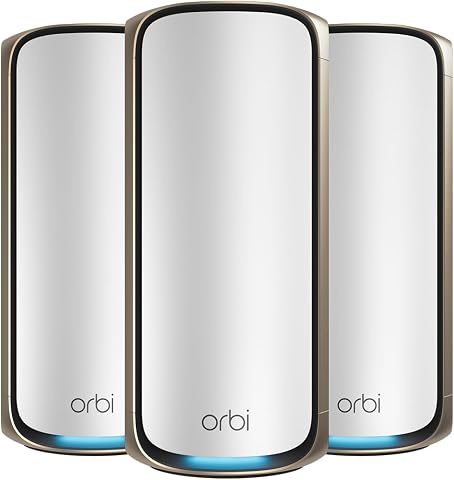
The NETGEAR Orbi 970 Series is a 3-pack WiFi 7 mesh system (router plus 2 satellites) providing up to 10,000 sq ft of coverage and support for up to 200 connected devices. It delivers speeds up to 27 Gbps using patented Quad-Band technology with a dedicated backhaul, and includes 10 Gig and 2.5 Gig wired ports for high-performance connections.
Pros:
- Massive whole-home coverage up to 10,000 sq ft with no dead zones
- Very fast WiFi 7 speeds up to 27 Gbps with dedicated backhaul
- High-speed wired options including 10 Gig ports
- Easy guided setup and remote management via the Orbi app
Cons:
- NETGEAR Armor security requires a paid subscription after 30-day trial
- Real-world speeds vary with devices and internet plan
- Only for use in the US
Best for: Households planning a Wi-Fi 7 mesh setup around this three-pack
Not ideal for: Buyers who need only a single access point or have not checked compatibility
Bottom line: Choose the NETGEAR Orbi 970 Series WiFi 7 Mesh System (3-Pack) after confirming its requirements fit your home and connected devices.
2.5GbE Network Switch
A 2.5GbE switch can add wired network connections for compatible devices, making it a useful slot to consider when a router does not have enough suitable ports. Since no product pick was supplied, choose a switch by starting with a list of devices you intend to connect, such as computers, storage, or other network equipment. Count the ports those devices need and leave room for planned additions. Port count matters more than choosing a model by appearance or assuming every device can use the same link speed.
A frequent mistake is buying a switch without checking the router’s available ports, the connected devices’ Ethernet capabilities, or the cables already in use. Trace the intended connection path and confirm that each device and upstream connection supports the speed you want. Also check whether the switch needs external power and where it can be installed. Follow the slowest link in each path: a faster switch port cannot change the capability of a device or connection attached to it.
Before selecting a model, check whether it is managed or unmanaged and whether its features fit how you plan to maintain the network. Avoid paying attention to feature labels without identifying a real need for them. Review the manufacturer’s documentation for port speeds, power requirements, and installation details, then confirm the switch will fit the space and connect cleanly to your router. Write down the topology first to avoid buying ports you cannot use.
What to look for:
- Count current and planned wired devices before choosing port count.
- Confirm all required ports support the intended Ethernet speeds.
- Check compatibility with the router and connected devices.
- Review power, mounting, and placement requirements.
- Choose managed or unmanaged features to suit your network needs.
USB-C Ethernet Adapter
A USB-C Ethernet adapter gives a compatible computer a way to connect to a wired network when it lacks a suitable built-in Ethernet port. The listed pick is the Acer USB-C Hub 6-in-1 Adapter with Ethernet, 10Gbps Data Transfer and. Its supplied product name ends after “and,” so confirm the complete model name and specifications before purchasing. Check the computer’s USB-C port capabilities and operating-system compatibility rather than assuming every USB-C port supports the same functions.
One common mistake is treating an adapter’s connector shape as proof that it will work with a particular laptop or tablet. Confirm that the device supports the adapter’s connection method, and check the manufacturer’s details for Ethernet capability, other hub ports, and any power requirements. Consider how the hub will fit around neighboring ports and whether the attached cable reaches your workspace. Check the exact port and device documentation, particularly if you expect to use video, charging, or data connections at the same time.
Compatibility also depends on the wired network path. Check the Ethernet cable, switch or router port, and computer settings before expecting a faster or more reliable connection. Do not infer performance from the “10Gbps Data Transfer” phrase in the product name; confirm what that figure refers to in the full manufacturer specifications. Verify each function you need before relying on the hub as a multiport solution.
What to look for:
- Confirm the complete product name and exact model specifications.
- Check USB-C port and operating-system compatibility.
- Verify Ethernet and other port functions in the manufacturer details.
- Review power needs and simultaneous-use limitations.
- Check cable reach and clearance around neighboring ports.
Acer USB-C Hub 6-in-1 Adapter with Ethernet, 10Gbps Data Transfer and 100W PD Ch

A compact 6-in-1 USB-C hub that expands a single port into 2×USB-C 3.2, 1×USB-A 3.2, 1×USB-A 3.0, Gigabit Ethernet, and 100W PD charging. It supports transfer speeds up to 10Gbps, stable 1000Mbps wired networking, and up to 90W charging output for the host laptop.
Pros:
- Six connection options from a single USB-C port
- Fast data transfer speeds up to 10Gbps
- 100W PD passthrough charging keeps laptop powered
- Plug and play with no drivers needed across major operating systems
Cons:
- Does not support video output or monitor connections
- Full 10Gbps speed requires compatible ports and devices
- Gigabit speeds require CAT6 or higher Ethernet cable
Best for: Compatible laptops or tablets that need Ethernet through USB-C
Not ideal for: Devices with unsupported USB-C ports or unverified hub requirements
Bottom line: Confirm the full Acer model specifications and host-device compatibility before choosing this adapter.
Wi-Fi 7 Mesh System
A mesh system is intended for a network plan that uses multiple units to provide wireless access in different parts of a space. The pick for this slot is the eero Max 7 Mesh Wi-Fi System (3-Pack). Consider it when planning a Wi-Fi 7 mesh setup, and compare the manufacturer’s placement guidance with your room layout, power availability, and internet equipment. Do not assume a three-pack is necessary for every home; first identify where wireless coverage is needed and how the units will connect.
A common mistake is selecting a mesh system without checking whether its requirements fit an existing router or modem arrangement. Decide whether the eero system will replace current wireless equipment or be used in a configuration supported by its documentation. Check the capabilities of your client devices as well: a Wi-Fi 7 system does not make older or unsupported devices adopt newer wireless features. Match the system to your equipment and verify the manufacturer’s guidance before planning installation.
Also compare this pick with the NETGEAR option in the router section so you do not buy two systems without a defined reason. Review each manufacturer’s coverage guidance, wired connections, setup requirements, and compatibility details. Plan unit locations where they can be powered and where any required wired connections are accessible. Choose one coherent layout based on your space and devices, then confirm the full kit contents before ordering.
What to look for:
- Review manufacturer coverage and placement guidance for your space.
- Confirm compatibility with modem and existing network equipment.
- Check wired port types and system setup requirements.
- Verify Wi-Fi 7 support on devices expected to use those features.
- Compare the kit’s role with any router or mesh equipment already planned.
eero Max 7 Mesh Wi-Fi System (3-Pack)

The eero Max 7 mesh Wi-Fi system offers fast wired and wireless speeds with Wi-Fi 7 technology, supporting coverage up to 7,500 sq. ft.
Pros:
- High-speed Wi-Fi 7 technology for fast wired and wireless connections
- Extensive coverage up to 7,500 sq. ft. and supports 750+ devices
- Easy setup and management via the eero app
- Supports smart home protocols like Thread, Matter, and Zigbee
Cons:
- Requires subscription for advanced security features
- Higher price point compared to basic routers
- Limited to compatible devices for some smart home integrations
Best for: Homes planning around the eero Max 7 three-pack
Not ideal for: Buyers who have not established a need for multiple mesh units
Bottom line: Consider the eero Max 7 Mesh Wi-Fi System (3-Pack) when its documented requirements and layout fit your network.
Cat 6A Ethernet Cable
Ethernet cabling connects wired network equipment, so the right cable depends on the devices and installation path you have planned. No specific product was supplied for this slot. Start by listing the connections between your router, switch, computer, and storage, then measure each route with enough allowance for safe routing. Choose cable length based on the real path rather than stretching a short cable across a walkway or leaving an unnecessarily long coil.
A common buying mistake is focusing only on the category printed on the package while overlooking connector fit, cable length, or how the cable will be routed. Confirm that the cable has the connectors your devices use and that its specifications suit the network connections you intend to make. For a run through walls or other constrained spaces, check applicable installation requirements and the cable manufacturer’s guidance. Plan the route first and avoid tight bends or locations where the cable may be pinched.
Check the full connection chain before expecting a particular link speed: the cable is only one part of a path that includes device ports and network equipment. Keep wired connections labeled if several similar cables are installed, especially where a switch links multiple devices. Verify that the selected cable is appropriate for the location and installation method, and confirm any shielding or other construction details that matter for your environment. Use the specifications to match the cable to the actual run and connected hardware.
What to look for:
- Measure each cable route and allow practical slack.
- Confirm connector type at both ends of every connection.
- Check cable specifications against the intended devices and ports.
- Review installation and location guidance for in-wall or constrained routes.
- Label similar cables to make the network easier to trace.
10GbE NAS
A NAS can provide shared storage on a network, and the listed pick is the QNAP TS-855X-8G-US 8-Bay NAS. Before choosing it, identify how you plan to use shared storage and which devices will access it. Confirm the NAS’s network connection requirements against your router or switch and check whether your intended computers can connect at the speeds you expect. The model name identifies an 8-bay NAS, but check the full product documentation for supported drives, memory, networking, and setup details.
A common mistake is buying a multi-bay NAS without planning the drives, network connection, and physical installation. Check drive compatibility and decide how much usable capacity your tasks require; the number of bays alone does not establish that. Review the manufacturer’s guidance for drive installation, configuration, backups, and any required accessories. Plan storage as a system, including how files will be backed up and who or what needs access, rather than treating the NAS as a standalone box.
For the “10GbE” slot, confirm the precise networking options on the NAS and the equipment needed to connect them. Check the switch or router, cable, and client device capabilities along the entire path. Also make sure the unit’s dimensions, cooling, power, and placement needs work in the intended location. Verify the complete setup in QNAP’s specifications and documentation before buying drives or other components.
What to look for:
- Check QNAP documentation for drive compatibility and supported configurations.
- Confirm the NAS network ports and any required accessories.
- Verify compatible 10GbE connections throughout the network path.
- Plan drive capacity, backups, and access needs.
- Check physical dimensions, power, and placement requirements.
QNAP TS-855X-8G-US 8-Bay NAS

The QNAP TS-855X is a diskless 8-bay NAS with an 8-core Intel Atom processor, 8GB of DDR4 memory, and high-speed 10GbE and 2.5GbE connectivity. It supports NVMe cache or storage pools, PCIe expansion, and QTS or QuTS hero, making it suitable for business storage, backup, and virtualization.
Pros:
- 8-core processor supports business storage and virtualization
- 10GbE and dual 2.5GbE ports provide high-speed networking
- Supports NVMe caching or storage pools and PCIe expansion
- Can run QTS or QuTS hero
Cons:
- Diskless configuration requires drives to be purchased separately
- Only one customer review is listed
Best for: Users building a networked storage setup around an eight-bay NAS
Not ideal for: Buyers who have not checked drive, network, and backup requirements
Bottom line: Choose the QNAP TS-855X-8G-US after confirming its drive and network requirements fit your complete setup.
For a budget-first upgrade order, start by identifying the bottleneck and replacing only the component that addresses it. Check existing devices and cabling before buying a switch, adapter, or new wireless system; a new component cannot add capabilities that the rest of the connection path does not support. Prioritize the actual need, then confirm compatibility and installation requirements for that step.
Work through the checklist at your own pace, keeping a simple map of devices, ports, and cable runs as the network grows. Confirm product details with the manufacturer, especially where the supplied pick name is incomplete or a specific model was not provided. A clear plan makes each upgrade easier to place and use, and leaves room to expand when your needs change.