This checklist is for developers who want to streamline repetitive work, add hands-free controls, or connect automation ideas to physical devices. It covers desk controls, portable displays, debugging tools, and power monitoring, with picks and advice based on the product names provided. Choose for your workflow first: a useful tool should fit the tasks you already do.

Get business pricing on tech for your team
- Business-only prices and quantity discounts
- Tax-exempt purchasing
- Multiple users, one account, clear invoices
The sections move from input devices to displays, hardware debugging, and smart plugs. Each one explains why the category can matter, points out common fit or compatibility checks, and gives a concise verdict for the listed pick. The USB foot pedal section is advice only because no product was specified; the stream controller pick is “Programmable Logic Controllers.” Check the category carefully before treating a product name as a description of its features.
Use the look-for list to compare the options against your setup, then read the best-for and not-ideal notes to decide whether a pick suits your needs. Confirm connections, operating-system support, physical dimensions, and any required software with the manufacturer before buying. Verify compatibility directly, especially when a tool needs to work with your existing hardware or workflow.
Programmable macro keyboards
A programmable control surface can make frequently repeated actions easier to reach, especially when your work involves recurring commands or switching among tasks. The listed pick, Logitech MX Creative Console with 9 Customizable Keys, Graphite, names a compact set of customizable keys. Consider whether nine controls can cover the actions you actually repeat, and whether you prefer dedicated buttons to keyboard shortcuts. Map real tasks first so the control layout solves a routine you have rather than adding another device to manage.
A common mistake is assuming that “customizable” guarantees support for every app, command, or operating system. Check the supported software, connection method, configuration requirements, and whether profiles can be tailored to the applications you use. Also consider where the console will sit: compare its footprint with available desk space and make sure the keys are reachable without disrupting your typing posture. Confirm app support and placement before settling on a layout. If you rely on specialized shortcuts, verify those actions can be assigned and tested in your actual workflow.
What to look for:
- Confirm software and operating-system compatibility.
- Check how keys are configured and whether app-specific profiles are supported.
- Match the number of customizable keys to your frequently repeated actions.
- Measure desk space and consider reach from your normal typing position.
Logitech MX Creative Console with 9 Customizable Keys, Graphite

The Logitech MX Creative Console combines a programmable keypad with nine customizable LCD keys, a control dial, and a roller for quick access to app tools and precise adjustments. It supports customizable profiles and up to 15 keypad pages, with integrations for creative and productivity apps on Windows and macOS through Logi Options+.
Pros:
- Nine customizable LCD display keys provide visual feedback.
- Control dial and roller support precise adjustments and navigation.
- Supports app profiles and up to 15 keypad pages.
- Integrates with apps including Adobe products, Final Cut Pro, Figma, DaVinci Resolve, Spotify, and Zoom.
Cons:
- Requires the Logi Options+ app.
- Requires Windows 10 or later or macOS.
Best for: Developers who want customizable keys for recurring desktop actions.
Not ideal for: People who need more controls than the listed nine keys provide.
Bottom line: Choose it when its customizable keys and confirmed software support fit the actions you repeat most.
USB foot pedals
A USB foot pedal can be useful when a hand-operated shortcut is inconvenient, such as while your hands are occupied or you want a separate physical control. No product is specified for this checklist, so treat this slot as a category to research rather than a recommendation. Start by naming the exact action you want to trigger and checking whether the applications involved accept a pedal input or a remapped key. Define the action first; a pedal is only useful when it can reliably trigger something your workflow supports.
Common buying mistakes include overlooking configuration software, assuming a pedal works across operating systems, or choosing a pedal whose switch arrangement does not suit the intended use. Verify connection type, supported platforms, key-remapping options, and whether the control is momentary or latching if that distinction matters for your task. Check cable reach and pedal placement too: it should be stable, reachable, and not interfere with chair or desk movement. Test the mapping in your target app before making it part of a critical workflow, and favor a setup that is easy to reset if a shortcut changes.
What to look for:
- Verify USB connection and operating-system support.
- Check whether key remapping or configuration software is required.
- Match switch behavior and pedal count to the intended action.
- Confirm cable reach, stability, and comfortable placement under your desk.
Stream controllers
The listed pick for this section is “Programmable Logic Controllers.” That product name identifies a category of controllers, so do not assume it describes a ready-made stream control surface or a specific set of features. Before considering it for a developer workflow, establish whether you need a device to trigger desktop actions, control a stream, or operate physical equipment; those are different jobs with different compatibility needs. Clarify the intended role before comparing this pick with other controller types.
Common mistakes include treating a broad category name as a complete specification and overlooking the software or hardware needed to make a controller useful. Confirm the exact model, inputs and outputs, programming method, supported protocols, and whether additional components are needed. For a desktop or streaming workflow, verify how the controller connects to the computer and which applications can receive its commands. For equipment control, confirm electrical and system compatibility with the relevant documentation. Check the exact model and integration path before buying; the supplied name alone is not enough to determine fit, setup, or capabilities.
What to look for:
- Identify the exact model and its intended use.
- Confirm inputs, outputs, programming method, and supported protocols.
- Check the computer, application, or equipment compatibility required.
- Find out whether additional hardware or software is needed.
Programmable Logic Controllers

The listed pick for this section is “Programmable Logic Controllers.” That product name identifies a category of controllers, so do not assume it describes a ready-made stream control surface or a specific set of features. Before considering it for a developer workflow, establish whether you need a
Pros:
- Well-reviewed by owners
- Fits this checklist slot
Cons:
- Availability can vary
Best for: Readers researching programmable controllers for a defined integration need.
Not ideal for: Anyone seeking a confirmed stream-control surface from this name alone.
Bottom line: Treat “Programmable Logic Controllers” as a category label until the exact model and compatibility are confirmed.
Portable touchscreen monitors
A portable touchscreen monitor can extend a development setup when you want another display that is easier to move than a fixed desk monitor. The listed pick is UPERFECT OLED Portable Monitor Touchscreen, 14-inch 3K 120Hz Gaming Mo; the supplied product name is truncated, so confirm the full model name and specifications before comparing it. Consider whether a 14-inch display suits your workspace and travel routine, and whether touch input is useful for the software you plan to use. Match display size to your setup rather than relying on the gaming wording in the name.
A common mistake is assuming the monitor will work with a laptop or device simply because both have a familiar connector. Check the full model’s video and power requirements, touch compatibility, supported operating systems, and whether a single cable can handle the connection you need. Consider the stand or mounting arrangement, screen protection for transport, and the available desk depth. Verify touch and video support together, since display output alone does not establish that touch features will work. Check the complete product listing for dimensions and included accessories before planning a portable workflow around it.
What to look for:
- Confirm the full model name and complete specifications.
- Check video input, power needs, and device compatibility.
- Verify touch support with your operating system and intended apps.
- Compare dimensions, stand arrangement, and transport needs with your setup.
UPERFECT OLED Portable Monitor Touchscreen, 14-inch 3K 120Hz Gaming Monitor

This portable 14-inch OLED monitor features a 3K resolution with true blacks and vibrant colors, ideal for gaming, editing, and multimedia. It offers a smooth 120Hz refresh rate, pixel-accurate touchscreen, and a slim, lightweight metal design for portability.
Pros:
- High-resolution 3K OLED display with vibrant colors
- Ultra-smooth 120Hz refresh rate and fast response time
- Lightweight and slim design for portability
- Pixel-accurate touchscreen with no offset
Cons:
- 3K runs at 100Hz via HDMI, full 120Hz only via Type-C
- Limited information on durability and long-term use
- Requires setting as main screen for optimal touchscreen performance
Best for: Developers who want to evaluate a 14-inch portable touchscreen for their setup.
Not ideal for: Buyers who need confirmed compatibility from the truncated product name alone.
Bottom line: Check the complete model specifications and device support before choosing this portable touchscreen.
USB logic analyzers
A logic analyzer can be relevant when your development work includes inspecting digital signals and debugging hardware interactions. The listed pick is Saleae Logic Pro 16-Channel Logic Analyzer, Red, which names a 16-channel analyzer. Whether that channel count and product fit your projects depends on the signals and devices you need to inspect. Start with your signal requirements: identify the number of channels, voltage levels, and protocols your work calls for, then compare those needs with the product documentation.
A common mistake is focusing on channel count while skipping electrical limits, supported sampling behavior, probes, and analysis software. Confirm the analyzer’s input specifications and compatibility with the signals you plan to connect; mismatched electrical levels can compromise a measurement or connected hardware. Check which protocols and operating systems the software supports, and whether the required cables or probes are included. Read the technical documentation before connecting hardware, and make sure your setup can capture the timing and signal details your debugging task requires. The product name alone does not establish those capabilities.
What to look for:
- Match channel count to the signals you need to inspect.
- Confirm input voltage limits and other electrical specifications.
- Check supported protocols, sampling behavior, and analysis software.
- Verify operating-system support and which probes or cables are included.
Saleae Logic Pro 16-Channel Logic Analyzer, Red
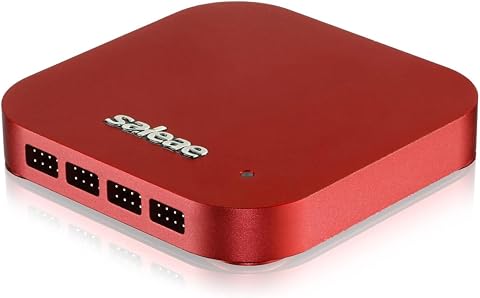
This logic analyzer provides 16 configurable digital and analog inputs, with support for SPI, I2C, and more than 23 additional protocol decoders. It captures digital signals at up to 500 MS/s and analog signals at up to 50 MS/s, and connects to Mac, Windows, and Linux systems via USB 3.0.
Pros:
- 16 configurable digital and analog inputs
- Supports a wide range of protocol decoders
- High digital and analog sampling rates
- Compact aluminum design for portability
Cons:
- Captures depend on PC memory
- Requires a USB 3.0 connection
Best for: Developers who need to inspect several digital signals in hardware projects.
Not ideal for: People whose electrical or protocol requirements are not covered by the product documentation.
Bottom line: Choose it only after the documented channel, electrical, and software specifications match your project.
Smart plugs with energy monitoring
A smart plug with energy monitoring may help developers track a connected device’s power use as part of a home or workspace setup. The listed pick is Eve Energy Matter Smart Plug and Power Meter, 2-Pack. Its name includes Matter and power metering, but confirm the supported features and setup requirements in the product documentation. Check your smart-home ecosystem and the devices you plan to connect before deciding whether this two-pack fits your needs.
Common buying mistakes include assuming every Matter-compatible device works identically with every hub, or overlooking regional plug and electrical requirements. Verify that the plug type and electrical rating match your location and intended load. Check which hub or controller is needed, how energy readings are accessed, and whether the control and monitoring features work with your chosen platform. Also consider the outlet layout: a plug can block an adjacent socket depending on its dimensions. Confirm platform, load, and outlet fit using the full specifications, and avoid connecting equipment unless its requirements are within the plug’s documented limits.
What to look for:
- Check plug type and electrical rating for your location and connected load.
- Confirm Matter setup requirements and compatibility with your hub or platform.
- Verify how power measurements are viewed and used.
- Check plug dimensions and whether neighboring outlets remain accessible.
Eve Energy Matter Smart Plug and Power Meter, 2-Pack

Control lights and appliances by app or voice, including remotely or through automation. Matter and Thread support enables compatibility across major smart home platforms, while local communication works without an Eve cloud, account, or tracking.
Pros:
- Works with major smart home platforms through Matter
- Supports app, voice, remote, and automated control
- Thread connectivity can strengthen a Thread network
- No Eve cloud, registration, or tracking
Cons:
- Requires a compatible hub
- Requires a supported mobile operating system
Best for: People evaluating a Matter smart plug with power metering for compatible devices.
Not ideal for: Buyers whose hub, load, or outlet layout has not been checked.
Bottom line: Confirm ecosystem support, electrical limits, and physical fit before using this smart plug.
If you are buying in stages, begin with the tool that addresses your most frequent task: a programmable control for repeated actions, a pedal for a supported hands-free shortcut, or a display for a specific workspace need. Next, prioritize debugging equipment only when your projects call for signal inspection, and add smart plugs when power monitoring suits the devices and platform you use. Let your daily workflow set the order, then confirm compatibility and requirements before each purchase.
You do not need every category to make a useful setup. Pick one concrete bottleneck, check the relevant product documentation, and build from there as your needs become clearer. For the advice-only pedal slot and the broad controller listing, take extra care to identify an exact model and verify its fit. A deliberate first pick is a solid way to make your automation toolkit more useful over time.