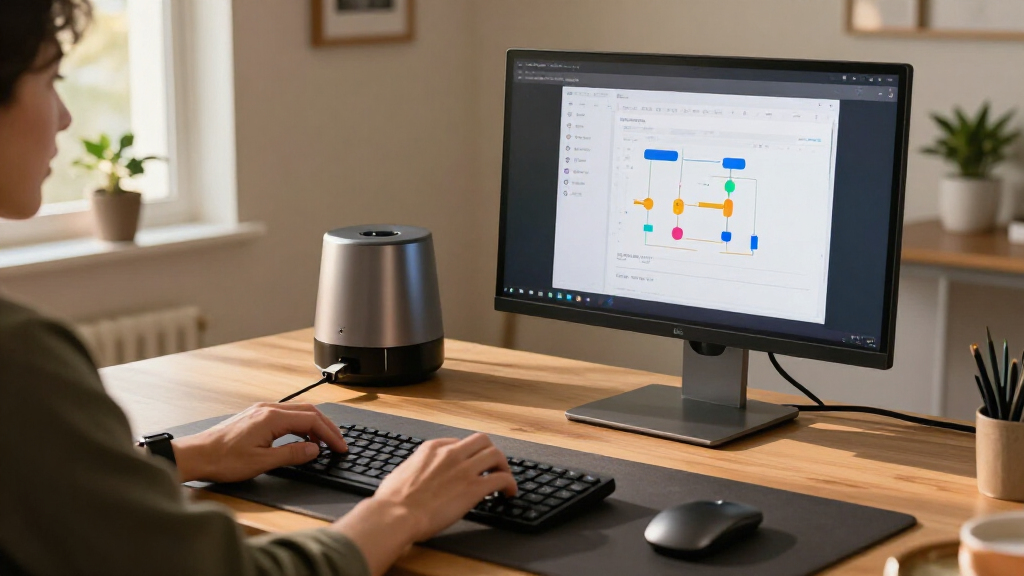

This checklist is for people building an AI automation desk for calls, recording, focused work, and connecting several devices. It covers the named product picks alongside a webcam slot with practical advice and no specific product recommendation.

Get business pricing on tech for your team
- Business-only prices and quantity discounts
- Tax-exempt purchasing
- Multiple users, one account, clear invoices
The sections follow common desk needs: audio and video, input, connectivity, extra screen space, and smart control. Each pick has a verdict, a brief fit note, and concrete details to check before you buy.
Use the checklist to match each item to your devices and workspace. Confirm ports, operating system support, dimensions, and placement needs against your own setup, then prioritize the gaps that interrupt your daily work.
USB microphone
A USB microphone can make a desk setup easier to use for calls and recordings, especially when you want a dedicated mic rather than relying on a computer’s built-in input. The Shure MV7+ is listed as a USB-C and XLR podcast dynamic microphone, so check which connection you plan to use and whether your computer or audio gear supports it.
A common mistake is assuming a connector alone guarantees a simple setup. Confirm that the included or separately needed cables match your devices, and check where the microphone will sit relative to your keyboard, monitor, and speaking position. A mic that crowds the work surface or requires awkward reach can be inconvenient even if its connections fit.
Before choosing, measure the available desk area and consider how you will position the mic during calls. Check the product listing for mounting and included-accessory details, and verify compatibility with your conferencing or recording applications. Connection and placement are the key checks for this pick.
What to look for:
- Confirm USB-C compatibility with your computer.
- Check whether you will use USB-C, XLR, or both.
- Review included cables and mounting accessories.
- Measure space for the microphone and its placement.
- Verify compatibility with your recording or call apps.
Shure MV7+ USB-C & XLR Podcast Dynamic Microphone – Black

The Shure MV7+ is a versatile microphone designed for podcasters, streamers, and content creators. It features a customizable LED touch panel, auto level adjustment, real-time denoising, built-in reverb effects, and dual USB-C and XLR outputs for flexible connectivity, delivering professional-quality audio in various recording environments.
Pros:
- Versatile connectivity with USB-C and XLR for flexible setup options
- Customizable LED touch panel with multiple color options
- Built-in reverb effects enhance audio quality
- Auto level and real-time denoising for consistent sound
Cons:
- Complex features may require some learning curve for beginners
- Limited to handheld form factor which may not suit all recording styles
Best for: People who want USB-C and XLR connection options.
Not ideal for: Setups without room for a dedicated microphone.
Bottom line: Choose the MV7+ if its connections and placement suit your desk.
Webcam with autofocus
A webcam with autofocus can help keep your image clear as your position changes during video calls and recordings. No specific product is named for this slot, so compare models based on the camera’s stated focus behavior, connection, and compatibility with the apps and computer you already use.
A frequent buying mistake is treating autofocus as the only requirement. Check the camera’s field of view and how it will frame you at your usual desk distance. A very wide view may show more of the room than you want, while a narrow one can make positioning harder. Confirm that its cable reaches the computer from your intended mounting point and that the mount fits your monitor or other chosen position.
Review the product listing for operating system support, privacy controls, and any included cable or mount details. If you use a monitor hub or docking station, check whether the webcam can connect there reliably. Framing and compatibility matter as much as autofocus for a comfortable setup.
What to look for:
- Check autofocus behavior in the product specifications.
- Match the field of view to your desk distance.
- Confirm operating system and video app compatibility.
- Check cable length and available USB ports.
- Verify that the mount fits your monitor or placement.
Mechanical keyboard
A mechanical keyboard is a frequent-contact part of a work desk, so its layout and feel can shape daily comfort. The listed Logitech MX Mechanical Wireless Illuminated Performance Keyboard Click should be checked for layout and switch preference before purchase; the product name alone does not establish which layout or switch variant is in the listing.
One common mistake is buying by model name without checking the exact configuration. Confirm the layout matches your typing habits, that the key legends suit your operating system, and that the connection method works with the devices you plan to use. Also check the keyboard’s dimensions against your desk and mouse space. A full-size layout may take more room than a compact one.
Review the listing for supported devices, wireless connection details, charging or battery requirements, and illumination controls. If you frequently switch between computers, confirm the product’s stated device-switching support and how it works. Layout, connection, and desk fit are practical checks before settling on this keyboard.
What to look for:
- Confirm the exact layout and key legends.
- Check the listed switch configuration and feel.
- Verify compatibility with each computer or device.
- Review wireless connection and power details.
- Measure the keyboard against available desk and mouse space.
Logitech MX Mechanical Wireless Illuminated Performance Keyboard Clicky
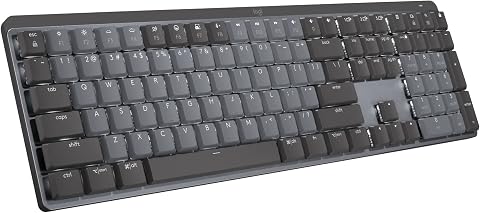
The Logitech MX Mechanical is a full-size, wireless mechanical keyboard featuring low-profile keys with satisfying tactile and audible clicks. It offers smart backlit keys that automatically adjust to lighting conditions, multi-device pairing via Bluetooth or Logi Bolt receiver, and a rechargeable battery with long-lasting power.
Pros:
- High-quality tactile and clicky mechanical keys for satisfying typing experience
- Smart backlighting automatically adjusts to lighting conditions
- Supports multi-device pairing with up to 3 devices via Bluetooth or Logi Bolt
- Long-lasting rechargeable battery with up to 15 days of use
Cons:
- Requires Logi Options+ software for full customization
- Not compatible with Logitech Unifying technology
- Battery life may vary based on usage and lighting
Best for: People who want a wireless mechanical keyboard for work.
Not ideal for: Buyers who need a specific layout without verifying the variant.
Bottom line: Confirm the listing’s layout, switch, and device support before buying.
USB-C docking station
A docking station can reduce the number of separate connections needed at a desk, but its usefulness depends on the computer and peripherals you need to connect. The listed Dell Pro Thunderbolt 5 Smart Dock SD25TB5 includes a 300W Power Delivery claim in its name; check the dock’s official specifications and your computer’s requirements to confirm power and port compatibility.
A common mistake is assuming the dock’s connector or power rating guarantees every connected device will work as expected. Confirm that your computer supports the dock’s connection standard, and check the available ports against your monitors, storage, network, and accessories. Verify the supported display setup and resolution using the computer and display specifications together.
Before ordering, list the devices you want to connect and compare their plugs with the dock’s ports. Check whether your computer needs a particular cable, driver, or firmware, and make sure the dock’s dimensions and cable placement fit your desk. Host support and port needs should guide this choice.
What to look for:
- Confirm Thunderbolt 5 support on the host computer.
- Match dock ports to every planned peripheral.
- Check display count and supported resolutions.
- Verify power requirements against the computer’s specifications.
- Review cable, driver, and firmware requirements.
Dell Pro Thunderbolt 5 Smart Dock SD25TB5 with 300W Power Delivery and Multiple

The Dell Pro Thunderbolt 5 Smart Dock SD25TB5 offers high-performance connectivity with dual Thunderbolt 5 ports, supporting up to four 4K displays at 120Hz or an 8K display. It delivers up to 300W power to compatible systems and includes various ports for peripherals, along with remote management and security features.
Pros:
- Supports multiple high-resolution displays with high refresh rates
- Delivers powerful 300W charging for compatible systems
- Includes extensive connectivity options and security features
- Remote management capabilities for enterprise use
Cons:
- Heavy reliance on Thunderbolt 5 ports, which may limit compatibility with older devices
- Premium price point may be high for some users
- Requires compatible systems to utilize full power delivery and display features
Best for: Setups that need one dock for several compatible devices.
Not ideal for: Computers without confirmed support for the dock’s connection standard.
Bottom line: Verify host, display, port, and power requirements before choosing the dock.
Portable monitor
A portable monitor can add screen space for reference material, dashboards, or another active window without changing your main display. The VisionOwl listing names a dual 15.6-inch 1080P FHD portable monitor with a foldable design; check the full listing to understand how the dual-screen configuration connects and works with your specific computer.
A common mistake is assuming every USB-C port carries video. Confirm that your computer’s port supports display output, or check what alternate connections the monitor supports. Review the number and type of cables needed, whether external power is required, and whether your computer can drive the intended screens. Also consider the monitor’s footprint when open and whether the foldable setup fits beside your primary display.
Check the product dimensions, weight, included stand or case details, and compatibility with your operating system before buying. If you plan to travel with it, consider how it will fit in your bag and how you will protect it. Connection requirements and open-space fit are central to choosing a portable display.
What to look for:
- Confirm video output support on the computer’s USB-C port.
- Check supported connection types and required cables.
- Verify power needs and computer display support.
- Measure the open footprint on your desk.
- Review folded dimensions and included carrying accessories.
VisionOwl Portable Dual 15.6-Inch 1080P FHD Monitor with Foldable Design and VES

The VisionOwl dual-screen monitor features two 15.6-inch IPS displays with 1080p resolution and 107% sRGB color gamut, offering an expansive workspace ideal for multitasking and creative work. It supports quick setup with multiple connectivity options, a durable full-metal build, and flexible viewing modes, making it perfect for mobile professionals.
Pros:
- High-quality 1080p IPS displays with vibrant color reproduction
- Flexible foldable design with adjustable viewing angles
- Multiple connectivity options included for versatile setup
- Durable full-metal construction for professional appearance
Cons:
- Not a continuous waterfall display, limited to extended or mirror modes
- Relatively heavy for portable use at 3.5 pounds
- Requires driver installation for full functionality
Best for: People who need extra screen space at a desk or on the go.
Not ideal for: Computers without compatible video output or enough display support.
Bottom line: Confirm the connection and desk footprint before choosing this monitor.
Smart plug
A smart plug can bring compatible desk devices into a connected control setup. The Kasa Smart Plug Mini EP10P4 is listed as a four-pack, so first identify which devices you intend to connect and confirm that each one is suitable for a smart plug.
A common mistake is treating a smart plug as a way to automate any device or replace its built-in controls. Check the manufacturer’s guidance for the device you plan to plug in, including its electrical requirements and whether power cycling is appropriate. Confirm the plug’s stated load limits, outlet spacing, and whether it blocks nearby sockets. Avoid assuming that every device will resume its previous state when power returns.
Review compatibility with your home network and the Kasa app or services you plan to use, along with the setup requirements in the product listing. Consider whether the outlet is accessible and whether the device’s cable can reach without strain. Device suitability and network support are the main checks before using a smart plug in a desk routine.
What to look for:
- Check the device manufacturer’s guidance before automating power.
- Confirm electrical requirements and plug load limits.
- Verify network and app compatibility.
- Check outlet spacing and access to nearby sockets.
- Confirm how the connected device behaves after power returns.
Kasa Smart Plug Mini EP10P4, 4-Pack
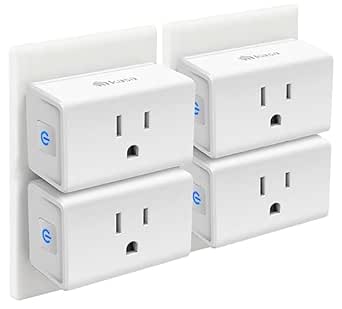
Four compact Wi-Fi smart plugs let you control lights and small appliances by voice or through the Kasa app. They connect to 2.4 GHz Wi-Fi without a hub and support schedules, timers, and Away Mode.
Pros:
- Compact design leaves the second outlet accessible
- Supports voice control and app-based control from anywhere
- Schedules, timers, and Away Mode are included
- UL certified
Cons:
- Requires a 2.4 GHz Wi-Fi connection
- Kasa app is required for setup and control
Best for: People with several compatible devices to control.
Not ideal for: Devices that should not have power interrupted.
Bottom line: Use the four-pack only for devices confirmed suitable for smart plug control.
Build the setup in a budget-first order by starting with the item that solves your most frequent interruption. Check compatibility before buying each pick, and add optional convenience items after core audio, video, input, and connectivity needs are covered.
You do not need to complete every slot at once. Use this checklist to make one well-matched change at a time, and your desk can grow into a more capable workspace as your needs become clearer.
Fall Picks
fall essentials
As an affiliate, we earn on qualifying purchases.